
WOWS Battle Intel
This application is now available on the MS Store.
The purpose of this application is to provide information to the user about the enemy team lineup in the current battle they enter. It serves as a guide that offers key indicators and is designed for casual or new users to help them determine the best strategy. It should be used in combination with other mods and is preferably run on a second monitor. The information is based on publicly available data from Wargaming and ShipTools.
First Time Startup/Settings
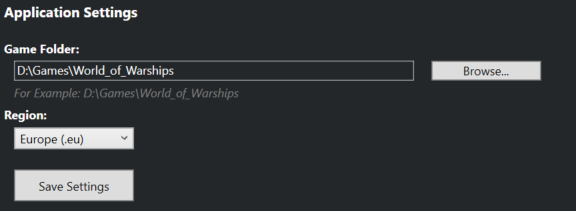
When the app is first launched, you will be shown the Settings window. The only required steps are to enter the path where the game is installed, choose your region, and click Save Settings.
Main View
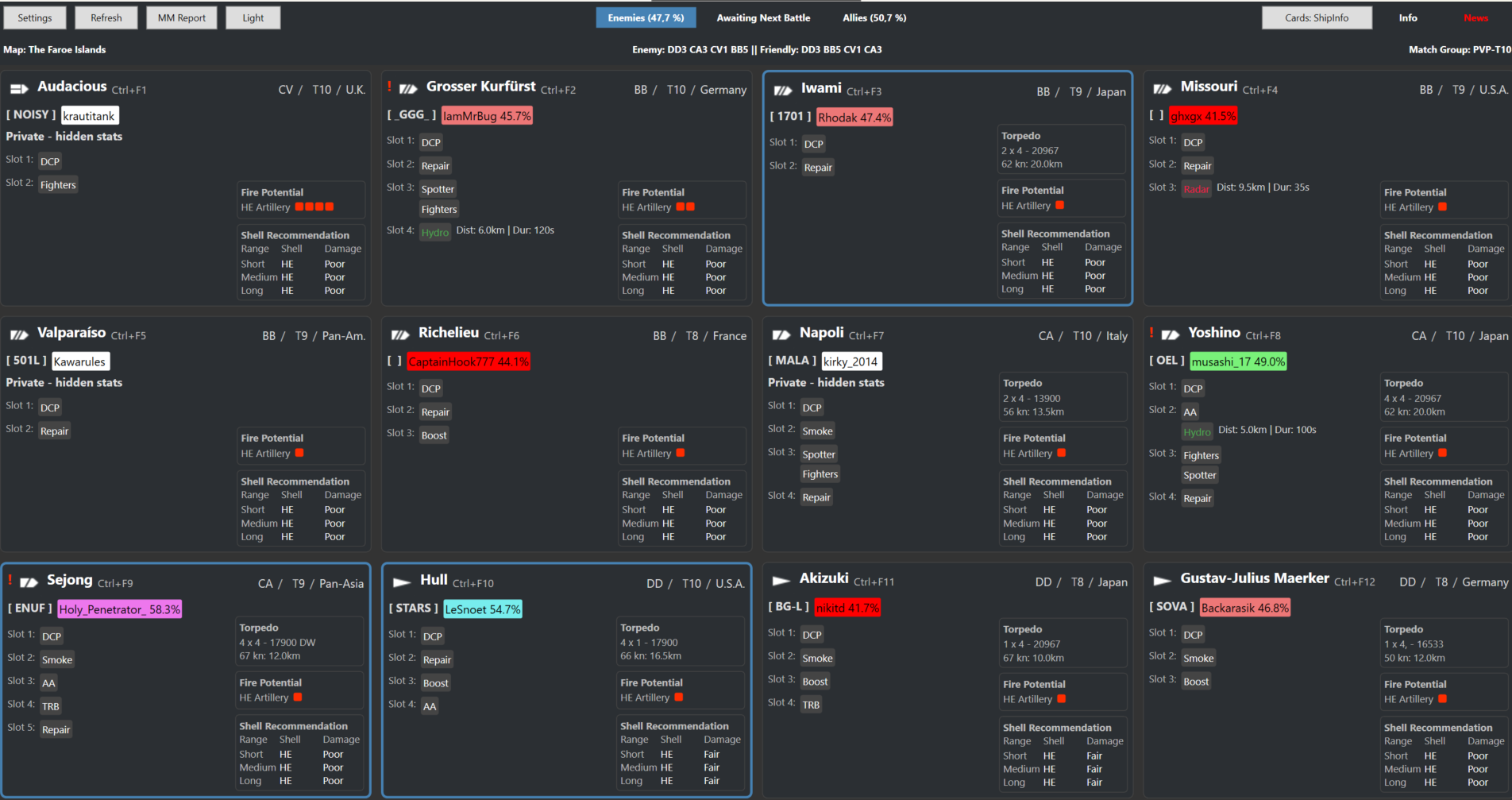
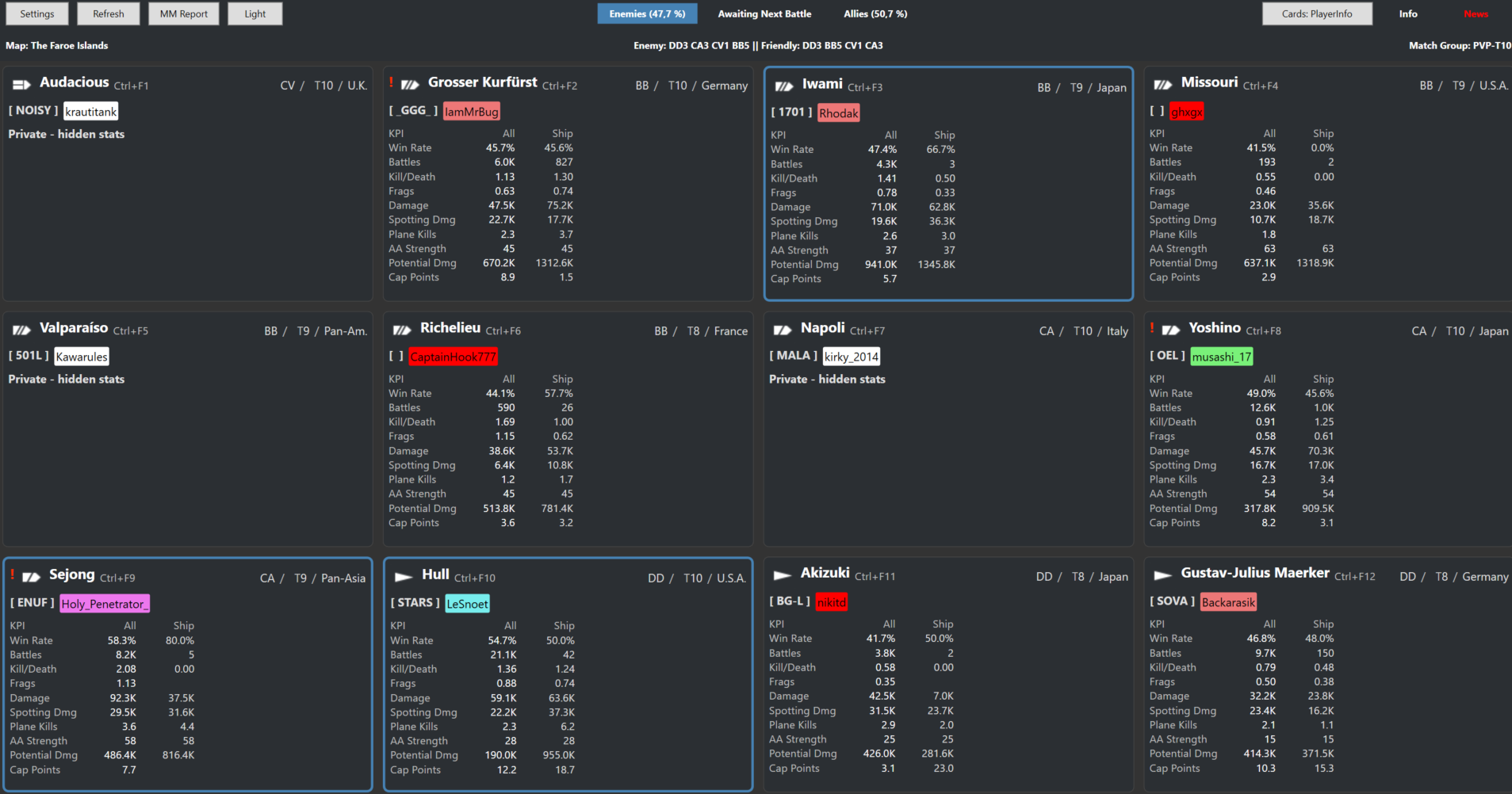
The main view of the application displays up to 12 ships/Players and provides basic performance information for each player, such as Win Rates and Kill/Death Ratios. Each Player/Ship combination is presented as a card. These cards also include parameters about the ship and the potential effectiveness of the user’s armaments against those ships.
While the application is running, whenever you start a new battle, the team information is refreshed automatically. The application detects when a new battle begins and calls Wargaming’s API to retrieve player and ship performance data. It also checks its local databases to calculate and prepare the information to display.
Depending on the ship the user is playing, certain information will be shown or hidden. For example, AP effectiveness will not be displayed if the user’s ship does not have AP.
Ship parameter information is based on the ship’s highest‑level modules but does not include any adjustments for captain skills or flags. To switch between Ship and player click the button on the top right or press the “Home” key. In the settings window, you can choose other Hotkeys for this and other functions.
Ship Info View
Player Info view
In the main window, on the top left, you will find the following options:

• Settings: Opens the Settings window.
• Refresh: Refreshes the battle data in case it did not fully load due to connectivity issues.
• Report: New for version 5.1. Review your past battle metrics and Match Making
• Battle Report Status: Informs you if your last battle has been captured
In the center of the main menu, you are provided with the team’s overall win rates and the application status.

The highlighted team is the one shown in the main content area. You can click on the other team to switch views (or use the default hotkey: Page Up).
The application status is also displayed here. Normally it shows “Awaiting Next Battle”, meaning the application has finished gathering and displaying the current battle information. When a new battle starts, it switches to “Gathering Battle Intel” for a few seconds, depending on your network and computer performance.
The Win Rate for each teams based on the noweighted avergae of each players Win Rate. The Win Rate used for each player is the Win Rate of the player if it is over 100 battles in that ship. If not, it uses the Overall Win Rate.
Card Details:
Focusing on the cards for a single Ship/Player as an example:
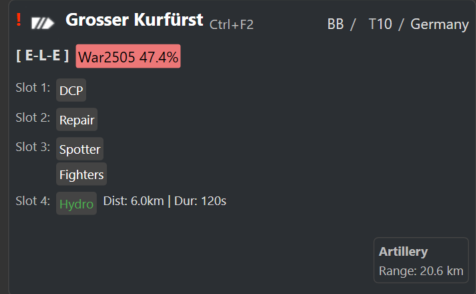
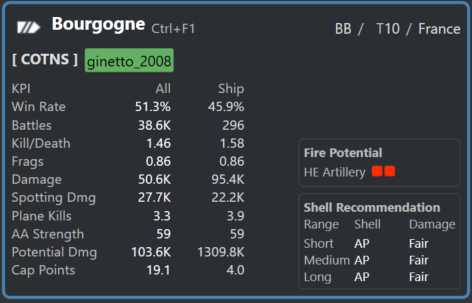
By default, you can toggle these cards by pressing the End key on your keyboard. This key can be changed in the Settings menu.
You will notice a red exclamation mark. Three cards per battle will have this marker. It indicates the player/ship combinations that are most dangerous to you. This is only an indicator; if those ships are on the opposite side of the map, the threat may be irrelevant.
You will also see that three cards have a blue outline. This highlights the player/ship combinations that are most dangerous to your team overall. Your team should prioritize these targets.
Ship View 1 (left screenshot above) shows the base ship parameters with the highest upgrades applied. These metrics do not include any Captain Skills, Flags, or Modules.
Ship View 2 (right screenshot) provides details about the player’s performance and a recommended shell type to use. Shell recommendations are calculated in a very rudimentary way, so your observations may differ.
Shell Recommendation Panel Explanation:
• For each range (Short / Medium / Long), the app picks the shell type (AP / HE / SAP) that usually gives the best direct damage against that target at that range.
• If two shell types are close, it shows Situational — meaning the better choice depends on things like target angle, what armor section you can hit, and consistency.
Damage Rating (Poor / Fair / Good / Great)
• This rating answers a different question: “How good is this target at this range, even using the best shell?”
• It’s a strength/attractiveness grade for the matchup at that range, not a damage-per-salvo prediction.
Important limitations
• It’s guidance, not a full simulator.
• Don’t interpret it as: guaranteed citadels/pens, exact damage numbers, or “Situational means shells are equal.”
Torpedo Panel (Ship Card)
Provides basic information about the ship’s torpedo layout.
Fire Potential Panel (Ship Card)
Rates the likelihood of causing a fire on a scale from 1 to 5 (1 = not likely, 5 = very likely) for each ordnance type the ship carries that can potentially start a fire.
More Information
Each card is bound to a hotkey combnitation of CTRL+F1 to FF12. This brings up a new window with more details about the ship and player stats.
Reporting
From relase 5.1 MM Report was changed to “Reporting”. In addition to Match Making Reporting, you now have the abilty to review the highlevel metrics from previous battles. Some notes to ensure this works properly.
1) The app must be running while you play.
2) World of Warships game must be enabled to save the replays of the battles.
More Info on Reporting
Mods
“Mods are community-made upgrades that improve how you see and control the battle, without changing the core gameplay.”
In WoWS specifically, mods don’t give you unfair power—they just enhance information, visuals, or convenience. Think of them as quality‑of‑life tools that make the game smoother, clearer, or more stylish.
🎯 What Mods Do in World of Warships
• Improve situational awareness
Things like better minimaps, shell flight timers, or clearer detection indicators help you read the battlefield faster.
• Enhance the UI
Cleaner damage counters, alternative ship icons, improved ribbons, or more readable consumable timers.
• Upgrade visuals
High‑contrast tracers, custom crosshairs, port backgrounds, or historical ship skins.
• Streamline information
Extended tech tree, detailed ship stats, or post‑battle reports that show more data.
⚓ What Mods Don’t Do
• They don’t give you extra damage, armor, or hidden advantages.
• They don’t change the server-side mechanics.
• They can’t make your ship stronger—only your awareness and comfort.
🛠 Why WoWS Players Use Mods
• To get clearer information during chaotic fights
• To reduce clutter and make the UI more readable
• To personalize the look and feel of the game
• To make competitive play more efficient
🧰 Officially Supported Mod Sources
These are the safest and most trusted because Wargaming checks them for compatibility and fairness.
• Wargaming’s own World of Warships Modstation
A launcher-style tool that lets players browse, install, and update approved mods with one click. It includes UI tweaks, crosshairs, minimap upgrades, and cosmetic changes.
• Aslain’s WoWS Modpack
The most popular community modpack, widely used and updated constantly. It’s curated, stable, and includes hundreds of mods in one installer.
These are the two sources most players rely on because they’re vetted and easy to maintain.